
Calendar
See your events and planned activities by month, week, or day, colour-coded by life area, and confirm the plans you approve.
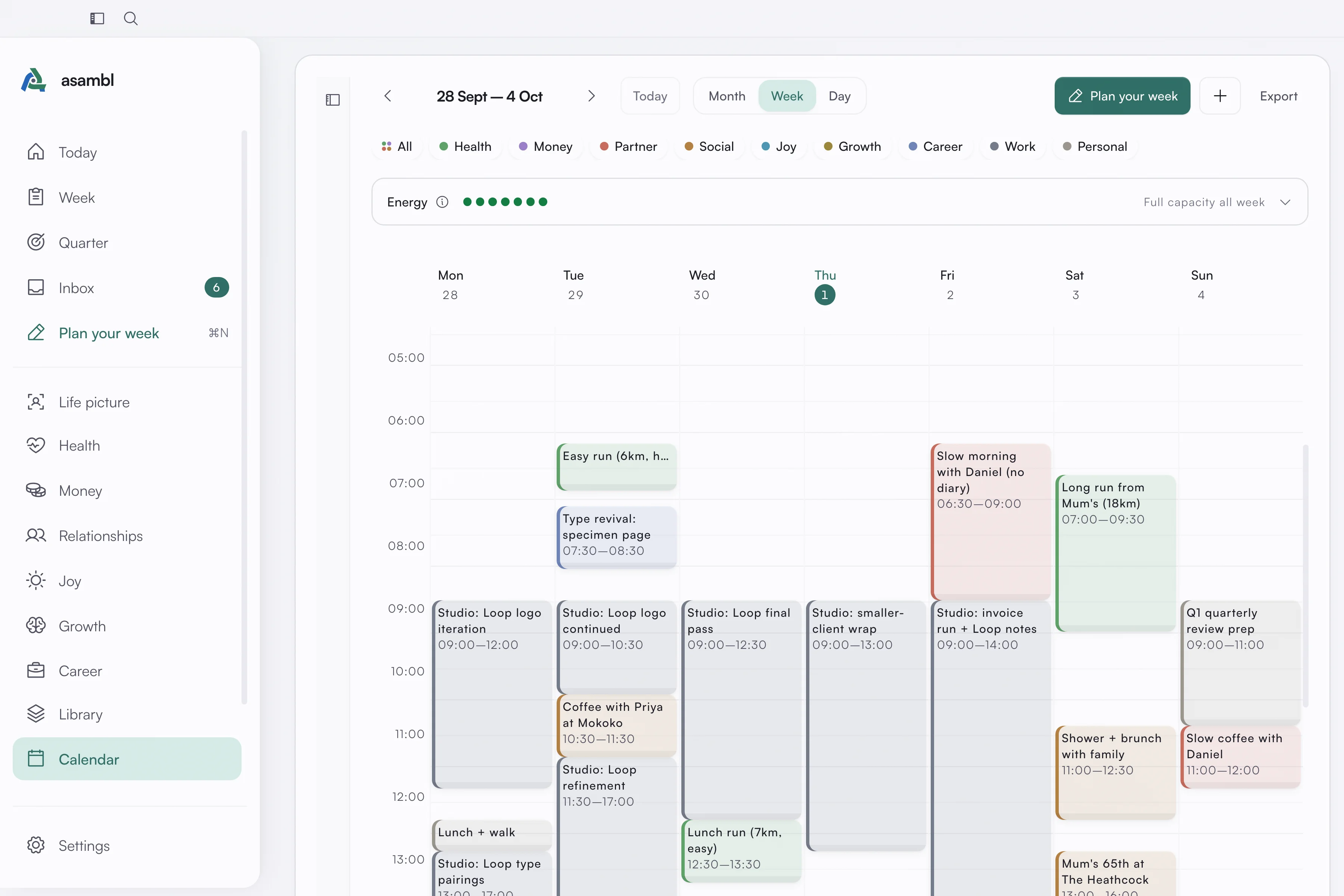
The calendar shows your events and planned activities in month, week, or day view, colour-coded by life area so you can see how your time is distributed across Health, Money, Relationships, and the other areas you plan.
Views
Switch between month, week, and day views depending on how close you need to look. Month view gives you the shape of your commitments at a glance. Week and day views show the detail, including overlapping events and the gaps between them. Because every event carries its life-area colour, you can read how your time is distributed without opening anything. Your job's meetings show as Work, in grey: the fixed time the week is planned around. Career blocks carry the Career area's blue. The chips along the top filter the view to one area.
Creating and editing events
You can create and edit events directly on the calendar. Click an empty slot, or +, to add an event, or open an existing one to change its title, time, or life area. Drag an event to reschedule it, and set recurring events for anything that repeats, such as a weekly review or a standing call.
Proposed plans
Plans you commit arrive on the calendar as proposed events. In month view they carry a dashed edge so you can tell them apart from confirmed events at a glance, and while any are pending, a bar at the top reads how many are waiting, with Dismiss all and Accept all. Hover a single proposed block to accept or dismiss just that one.
Accepting a proposal confirms it as a solid, colour-coded event in its life area. Nothing is committed until you accept it.
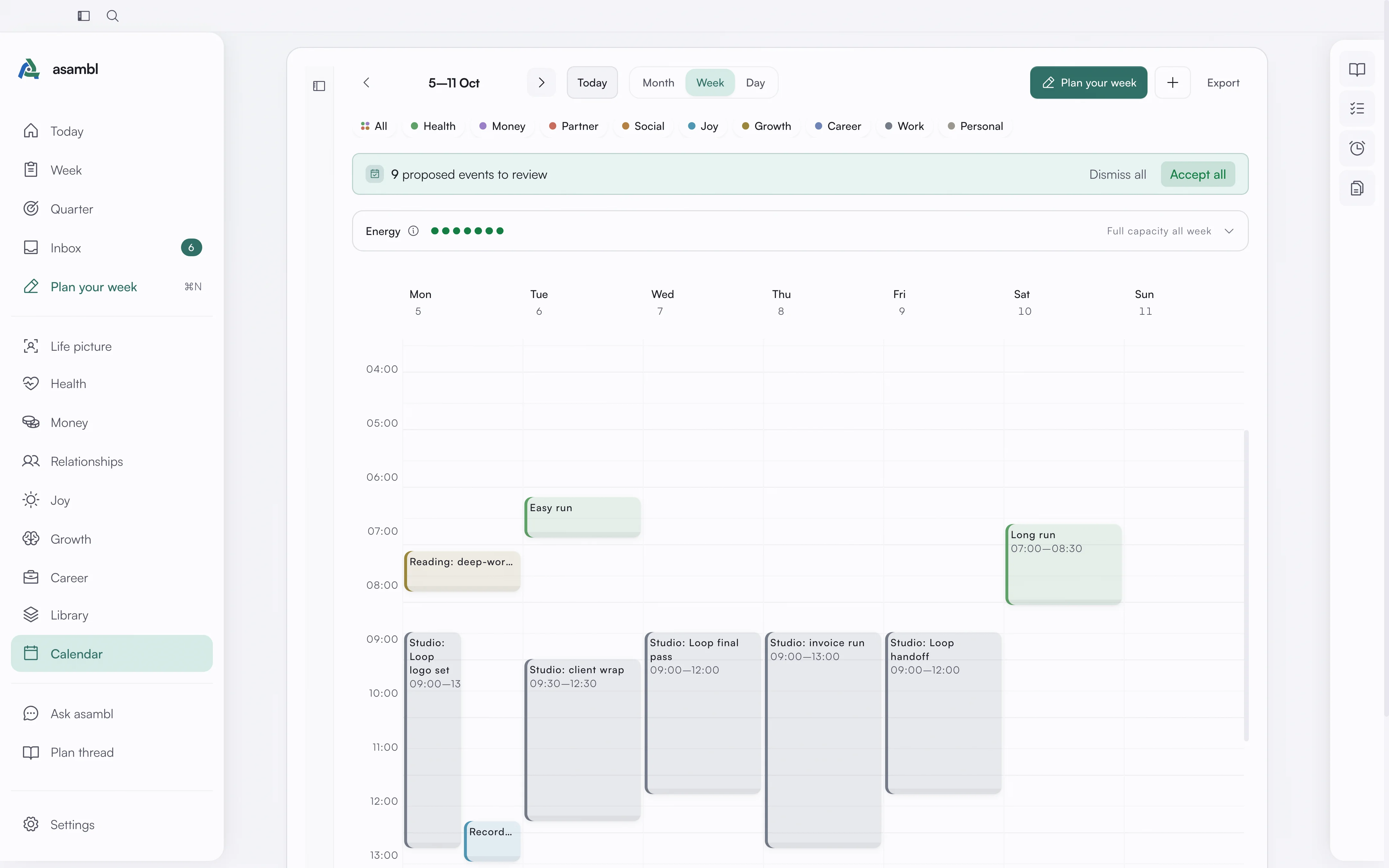
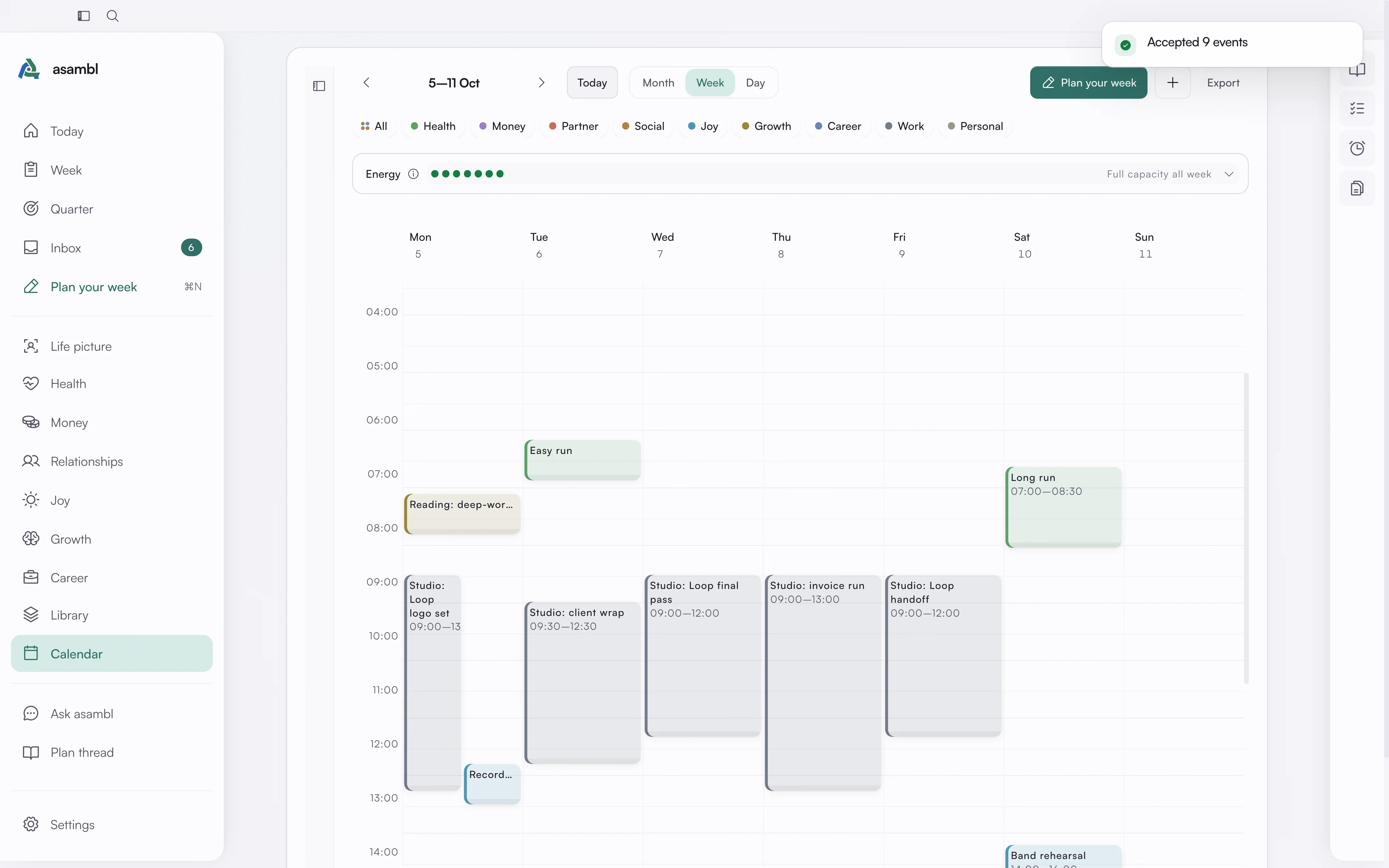
Once you have accepted the proposals for a week, the calendar reads as a confirmed, colour-coded plan. Each block shows which life area it belongs to, so a balanced week and a lopsided one both become obvious at a glance.
Reminders on the grid
Reminders with a set time appear on the week and day views. Click one to mark it done, snooze it, or open it to edit, without leaving the calendar. See Reminders.
Routines
A routine lands as a single recurring block rather than a scatter of small ones. Click the block to get a checklist for that occurrence, tick the steps off independently, and the block marks itself complete when they are all done.
Insights
Beyond the raw grid, the week and day views can summarise how your week actually breaks down. Time by area totals your planned hours per life area, so you can see at a glance whether the week leans too hard on one area or leaves nothing for rest; Work, your job's time, is not an area and does not count. Week insights shows how much is scheduled, the busiest day and where most of the time goes.
Energy
The Energy panel on the week view holds your energy for each day, from Plan A, full capacity, through Plan B, reduced, to Plan C, recovery. Pick a day to change your energy from that day on; the rest of the week follows, and lower days show on the grid so you can judge whether demanding blocks land when you have the energy for them. The planners read it for the week they draft; a plan for any other week starts from full capacity.
Google Calendar sync
Connect Google Calendar for two-way sync. Your external events show up here alongside your asambl events, so you are working against a single picture of your time rather than checking two places. Confirmed asambl events sync back to Google Calendar, which keeps your other devices and anyone you share availability with up to date.
You connect by signing in through Google once, after which asambl keeps the two calendars in step automatically, refreshing about every thirty minutes.
If it does not connect first time, open Settings, go to Integrations, and connect from there. Sync now refreshes straight away.
Connecting is optional. If you leave it disconnected the calendar still works fully for everything you create and plan inside asambl, and Export saves any week or month as a standard .ics file to bring into another calendar app.