
Settings
Every section of Settings, the extra pages you can turn on, the keyboard shortcuts, and how asambl handles your data.
Settings has ten sections in groups. Planning, Nudges, Reminders and Journal come first; Account, Privacy and Data sit under You; General and Integrations under App. Your life areas follow, one row each, with Add a life area at the end of the list, and About sits at the foot of the rail. Type in the search box at the top to find a setting by name.
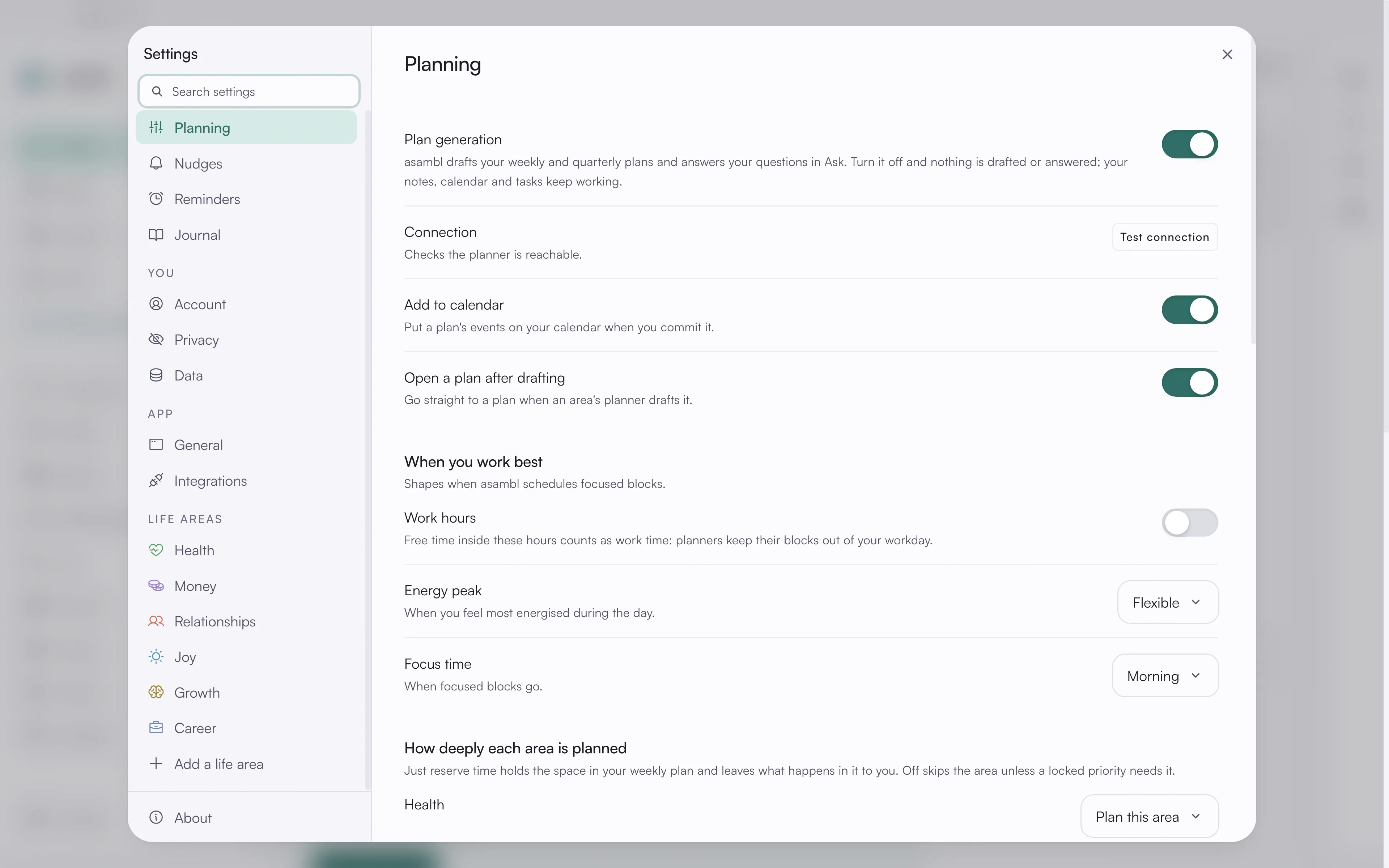
Planning
How asambl drafts your plans.
Plan generation is the switch for drafting. Managed AI is included, so there is no key to set up. Turn it off and asambl stops drafting: Plan your week and Plan your quarter say planning is off and point back to this switch, and Ask stops answering, so no prompt goes to the hosted service. Voice input and image scanning have switches of their own, under Privacy. Your notes, calendar, tasks and everything else keep working.
Add to calendar puts a plan's events on your calendar when you commit it, and Open a plan after drafting goes straight to a plan when an area's planner drafts it. Both are on by default.
When you work best shapes where focused blocks land:
- Work hours. Off by default. Turn it on to set your workdays and times, starting from Monday to Friday, 09:00 to 17:30. Planners keep their blocks out of your workday; your job is the time they plan around.
- Energy peak. Morning, afternoon, evening, or flexible.
- Focus time. When focused blocks go.
These are preferences, not rules. The planner treats them as strong signals and still works around what is actually on your calendar.
How deeply each area is planned sets each area to Plan this area, Just reserve time or Off. Just reserve time holds the space in your weekly plan and leaves what happens in it to you. Off skips the area unless a locked priority needs it.
Goal shaping offers a sharper version of each priority and goal at the end of planning. Accept it, rephrase it or skip it; nothing is saved until you accept.
Under Show more, Partner planning turns the Partner half of Relationships on or off, and Show planning details shows the sources and reasoning under each plan.
Nudges
The things asambl does on its own schedule, each explained where you turn it on.
- Morning touch. Off until you turn it on. At a time you choose, it reads today's items against the energy you declare and suggests keeping or deferring each one. Nothing moves until you accept, and you can undo it the same day.
- Sunday reminder. A reminder every Sunday at 18:00 to plan the week ahead. It shows under Reminders.
- Life picture review. On by default. Once a day while your computer is idle, asambl reads what changed in your notes and proposes facts for your life picture. Nothing is written until you accept one.
- Notices. One notice a week when a pattern is worth your attention: priorities behind at midweek, a slot that keeps slipping, a friend overdue a catch-up, a check on each new plan. Turn any kind off to keep it quiet.
Reminders
Reminders that repeat without a calendar event: water, posture, a weekly review. Add one with a title, how often it repeats and when it starts; the list below shows your recurring reminders with the next time each one fires. One-off reminders live in the Reminders panel.
Journal
Mood adds a five-step picker to each entry: Rough, Flat, Okay, Good, Great. Whether new entries start private is set under Privacy. See Journal, Tasks, Reminders & Admin.
Account
Your name, where you live, your timezone, and your key. Where you live is used to find what is on near you; in the UK, Germany and Spain you can also say which nation or region's public holidays apply.
Your key carries across updates, so this is mostly somewhere to check rather than change. Subscribers can manage their subscription from here. Nothing in asambl needs an asambl account, and your phone pairs with a one-time code; if you signed in to one before, it shows here with Sign out.
Privacy
What stays on your computer, and what leaves it.
What leaves this device lists every request the app made in the last seven days, grouped by where it went, with what each one sends and the switch that stops it. Counts and sizes only; the list holds no content.
Below it are the switches for Voice input, Image scanning, Crash reports and Usage signals, and whether new journal entries start private. On a new install, voice input, image scanning and crash reports are off until you turn them on; with voice input on, a mic shows on every text box, and nothing is recorded until you press it.
Data
- Backup and restore. Export a backup or restore from one, and open your data folder.
- Search. How many notes search covers and when it was last built, with a button to build it now.
- Export data. Habits as CSV, plans and calendar as JSON.
- Usage. Requests over the last seven days.
- Start fresh. Wipe your data, or reset the app entirely.
Your files are plain Markdown in a folder you control, so you can copy that folder anywhere without exporting anything.
General
Theme, accent, the page asambl opens on, the first day of your week, and the date format: Match system follows your computer's region and clock, or pick ISO.
The theme picker is here: ten looks, from the quiet Light default to full skins with their own typeface. See Themes.
Sidebar lists five extra pages, all off by default:
- System, connection and sync status for the app.
- Media library, your books, films, music and podcasts.
- Travel, upcoming trips and their plans.
- Joy profile, the activities you reliably enjoy, with weekly targets.
- Plan thread, everything asambl recorded while planning this week, in order.
Plan thread gets a place in the sidebar; the others open from the command palette. Media library, Travel and Joy profile belong to Joy and feed your plan whether or not you turn their pages on.
Integrations
- Google Calendar. Connect once and two-way sync starts from there. See Calendar.
- Web search. Lets your planners look up what is actually on.
- What else asambl can look up. Weather, public holidays and food lookup, each with its own switch and a line on what it sends.
- Capture from your phone. Turn it on, then Pair your phone with a one-time code. See Companion.
- Connect an agent. The command that lets Claude Code, Codex or another agent read your notes, plans and life picture with asambl closed. It reads; its only write is a note into your inbox.
Life areas
Each area you have added has its own page here, with its starter prompts and a button to remove it. Removing an area moves its notes to the archive; nothing is deleted, and you can add it back. Add a life area lists the ones you have not added. See Life areas.
About
What asambl is, the version you are running, and a button to check for updates.
Keyboard shortcuts
| Shortcut | Does |
|---|---|
Cmd/Ctrl + K | Command palette: jump to a page, run a command, search your files |
Cmd/Ctrl + N | Plan your week |
Cmd/Ctrl + Shift + C | Capture |
Cmd/Ctrl + , | Open Settings |
Cmd/Ctrl + Shift + J | Journal panel |
Cmd/Ctrl + Shift + T | Tasks panel |
Cmd/Ctrl + Shift + R | Reminders panel |
Cmd/Ctrl + Shift + A | Admin panel |
Cmd/Ctrl + Shift + N | Start a new conversation, while you are in Ask asambl |
Esc | Close the current overlay |
The four side panels share a first-letter family: Journal, Tasks, Reminders, Admin. The full list is in Settings, under General.
Your data and privacy
Your files stay on your machine. When AI is on, only the prompt for that specific request goes to asambl's managed AI endpoint, hosted on Azure OpenAI, and it is not stored long-term. Web search, weather, public holidays and food lookup each send only what their switch describes, and What leaves this device in Settings, under Privacy, shows every request. Full-text search, semantic search, and embeddings all run locally on your device.
You can switch AI off entirely: turn off Plan generation and asambl stops drafting and answering, so no prompt goes to the managed endpoint. Voice input and image scanning use the same service and have their own switches under Privacy, off on a new install. The rest of asambl keeps working.
Your files are plain Markdown in a folder you control, so you can back them up, version them, or open them in any editor. Nothing about the format locks you in.
For the full details, including data handling, retention, and your rights, read the complete privacy policy.