
Journal, Tasks, Reminders & Admin
Four quick tools in the desktop side panel, one click away on every screen. A daily journal, a task list with routines, reminders that notify you, and a tracker for renewals.
asambl keeps four quick tools in a slim side panel down the right edge of the desktop app. They sit one click, or one shortcut, away from wherever you are, so you can jot a thought, add a task, set a reminder, or log a renewal without leaving what you were doing.
The side panel shows on wider windows and tucks away on a narrow one. On the go, the Companion on your iPhone gives you the same kind of quick capture.
Open any tool from the side panel, or with the keyboard shortcut shown in its
tooltip.
They share a first-letter family: Cmd/Ctrl + Shift + J for Journal,
+ T for Tasks, + R for Reminders, and + A for Admin.
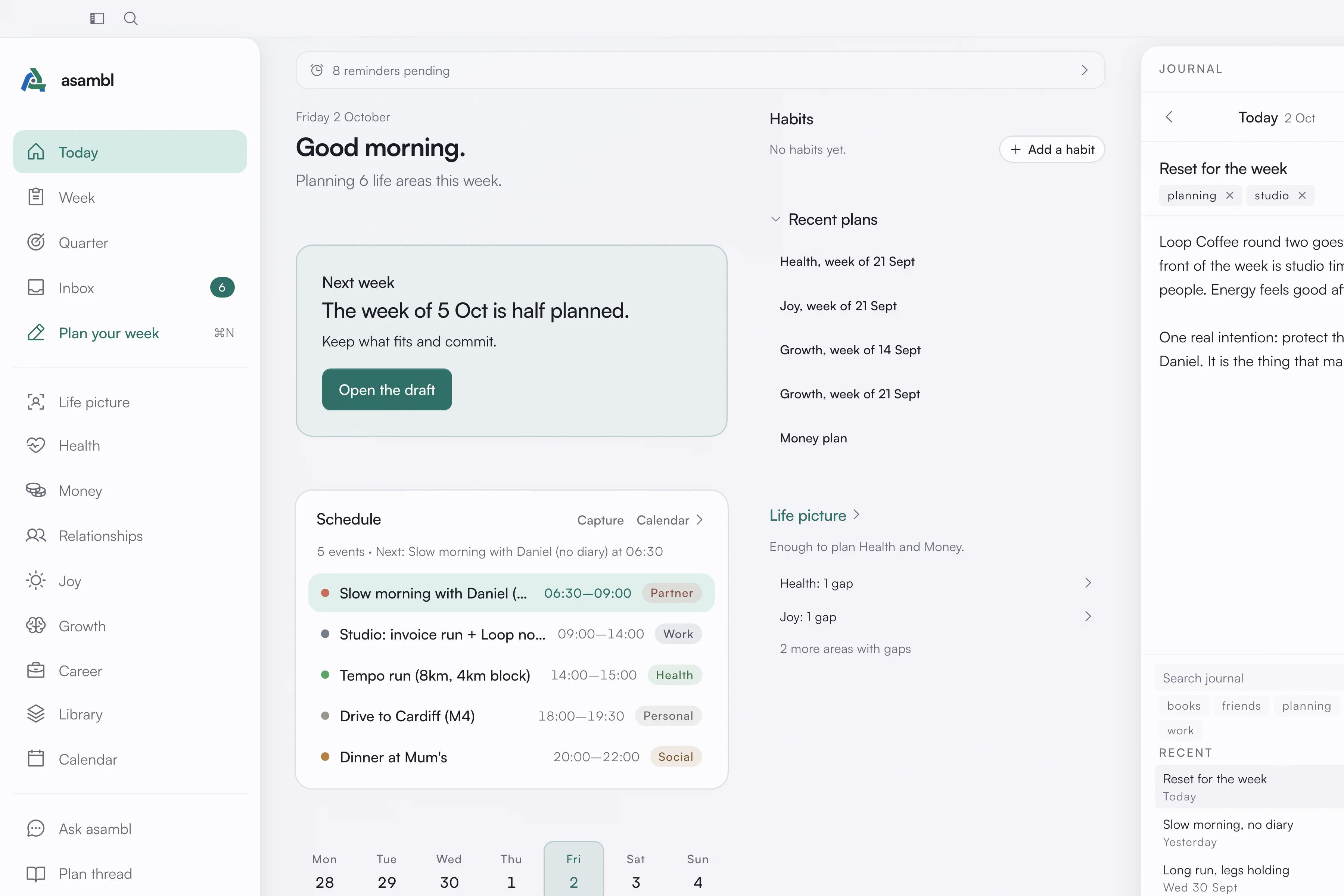
Journal
A daily journal. Each day is its own entry, saved as a plain Markdown file, one file per date. Give an entry a title, add tags, and write. It saves as you go, and you can move between days or search every entry you have written.
Two things are worth knowing:
- The privacy lock. Every entry has a lock. A private entry is left out of search, your planners and suggestions, and gets no inline edits. Use it for anything you want to keep entirely to yourself. Whether new entries start private is set in Settings, under Privacy.
- Inline tools. On an entry that is not private, select a passage to Sharpen it, Add an if-then, or Surface contradictions, and asambl reworks it in place. Only the text of that request goes to the managed AI endpoint, and only when AI is on. A private entry never does.
Mood tracking is available too. Turn on Mood in Settings, under Journal, then tag each entry with how the day felt: Rough, Flat, Okay, Good or Great.
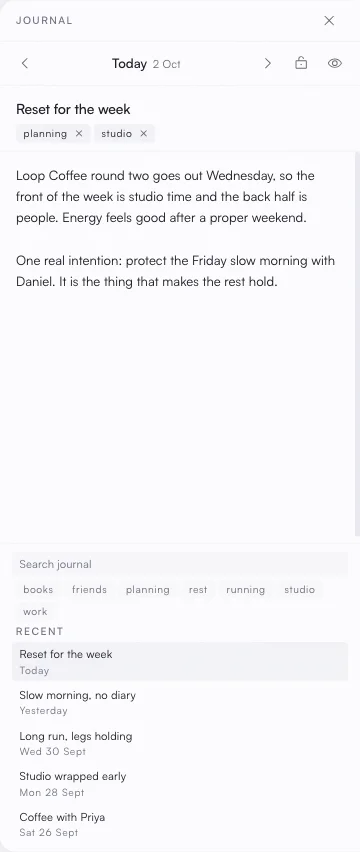
Tasks
A quick to-do list, grouped by life area. Type a task in plain language, including when it is due, like "call mum tomorrow", and asambl reads the date for you. Tag a task with a life area to keep it grouped, check it off when it is done, or delete it.
Tasks here are authored in the panel, or sent from the Companion on your phone, and kept in a single Markdown file. A to-do you capture on the desktop instead, with the todo tag, lands in your Inbox to triage rather than in this panel. The two are separate on purpose: the Inbox is for sorting what you caught on the fly, and the Tasks panel is the standing list you keep.
When a task with a life area is ready to become real work, use Promote to plan. That opens Ask asambl with the task handed to the planner for that area, ready to fold into your weekly plan and land on the calendar as a scheduled block.
Routines
Some things always go together. Packing supplements, changing the towels, meal prep: individually trivial, collectively a Sunday afternoon.
A routine groups those steps into one ordered sequence that recurs. Give each step a duration, set how often the routine repeats (daily, weekly, every two weeks or monthly), and tag it with a life area. It lands on your calendar as a single recurring block rather than a scatter of small ones.
Click the block and you get a checklist for that occurrence. Steps tick off independently, and when all of them are done the block is marked complete. Each occurrence tracks its own progress, so last week's half-finished routine does not follow you into this one.
Routines are managed from the Routines section of the Tasks panel, with New routine.
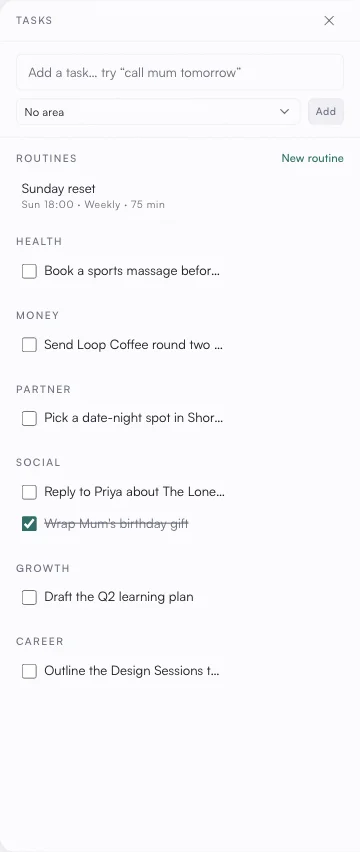
Reminders
Reminders nudge you at the right moment. When one fires, asambl shows a system notification, and reminders with a set time also appear on your calendar as chips you can act on without leaving the grid.
There are four ways to trigger one:
- At a time. A specific date and time.
- When you open a page. The next time you open a chosen page: Today, Week, Inbox, Library, Calendar, or Ask asambl.
- Before an event. A lead time before a calendar event: 5 minutes, 15 minutes, 30 minutes, an hour, or a day ahead.
- On a missed week. If a week goes by without a plan, asambl reminds you to plan one.
A fired reminder can be marked done, snoozed for 15 minutes, an hour, until tomorrow or a time you choose, or skipped. Skipping a recurring reminder keeps its rhythm rather than cancelling it.
Reminders that repeat without a calendar event, such as water or a weekly review, are set up in Settings, under Reminders: every day, every other day, every week, every other week, or every month, with an optional end. Your recurring reminders are listed there too, with the next time each one fires.
Reminders you set on the desktop are managed here, and so are the ones you send from your phone: they schedule themselves just as if you had set them here.
Admin
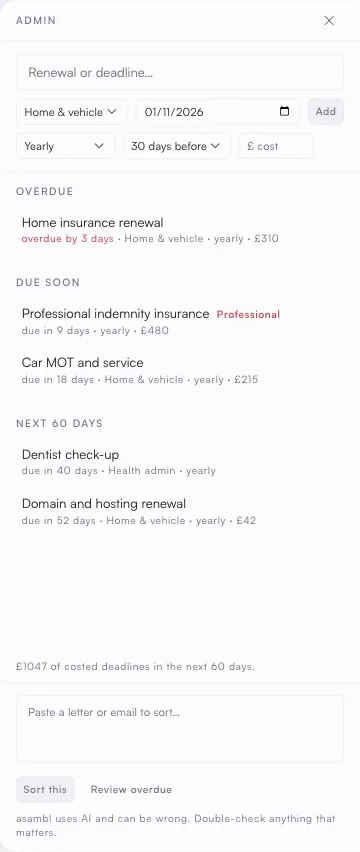
The fourth tool tracks the obligations that arrive on their own schedule and cost you when they are missed: renewals, registrations, deadlines, and the paperwork nobody schedules.
Each item carries a category, a due date, and how much notice you want:
- Professional, the registrations and revalidations your work depends on.
- Financial, tax deadlines, policy renewals, and anything with a penalty attached.
- Home & vehicle, insurance, MOT, tenancy, and the rest of it.
- Health admin, appointments, prescriptions, and screenings.
Set how often each one recurs, from a one-off through monthly, yearly, or every two, three, or five years. The longer cadences are the point: a five-yearly renewal is exactly the kind of thing you will not remember unaided.
Choose your heads-up separately, from a week up to 90 days ahead. Categories carry sensible defaults, since a professional registration needs longer warning than a prescription.
The panel groups what is overdue, what is due soon and what is coming in the next 60 days, with a total of what it will cost you, so a heavy month is visible before it arrives rather than during it.
Where this data lives
Everything in these four tools stays on your machine as plain Markdown, so you can read or back it up in any editor. When AI is on, only the prompt for a given request, such as an inline journal edit, goes to asambl's managed AI endpoint. You can switch AI off entirely, and all four tools keep working without it. See Settings for the full picture.