
Capture and your files
How to capture notes and log entries, run your daily check-in, sort your inbox, and browse and search your local Markdown files.
asambl gives you fast ways to get things out of your head and into the right place, then tools to sort, browse, and find them later. Everything you capture is stored as plain Markdown in a folder on your computer.
Capture
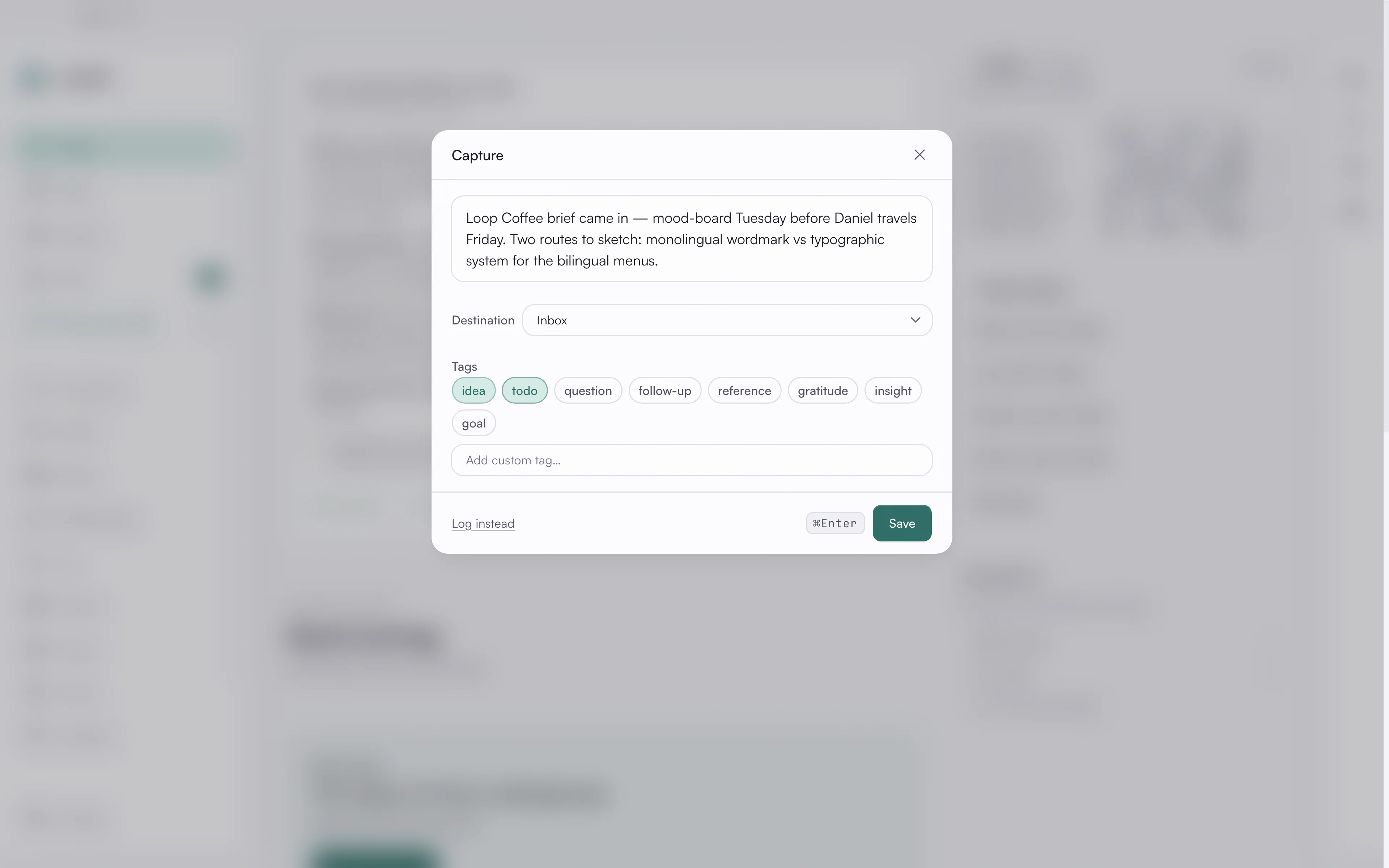
Capture is a lightweight note panel for whatever is on your mind. Type your note,
pick where it should go (the Inbox by default, or any life area), and add tags
like idea, todo, question, or follow-up. Save with Cmd/Ctrl + Enter and keep
moving. A capture lands in the Inbox first and is filed to the area you chose.
Cmd/Ctrl + Shift + C opens it from wherever you are in asambl, and it is in the
command palette, on Today, and in the tray menu as New Capture.
Log
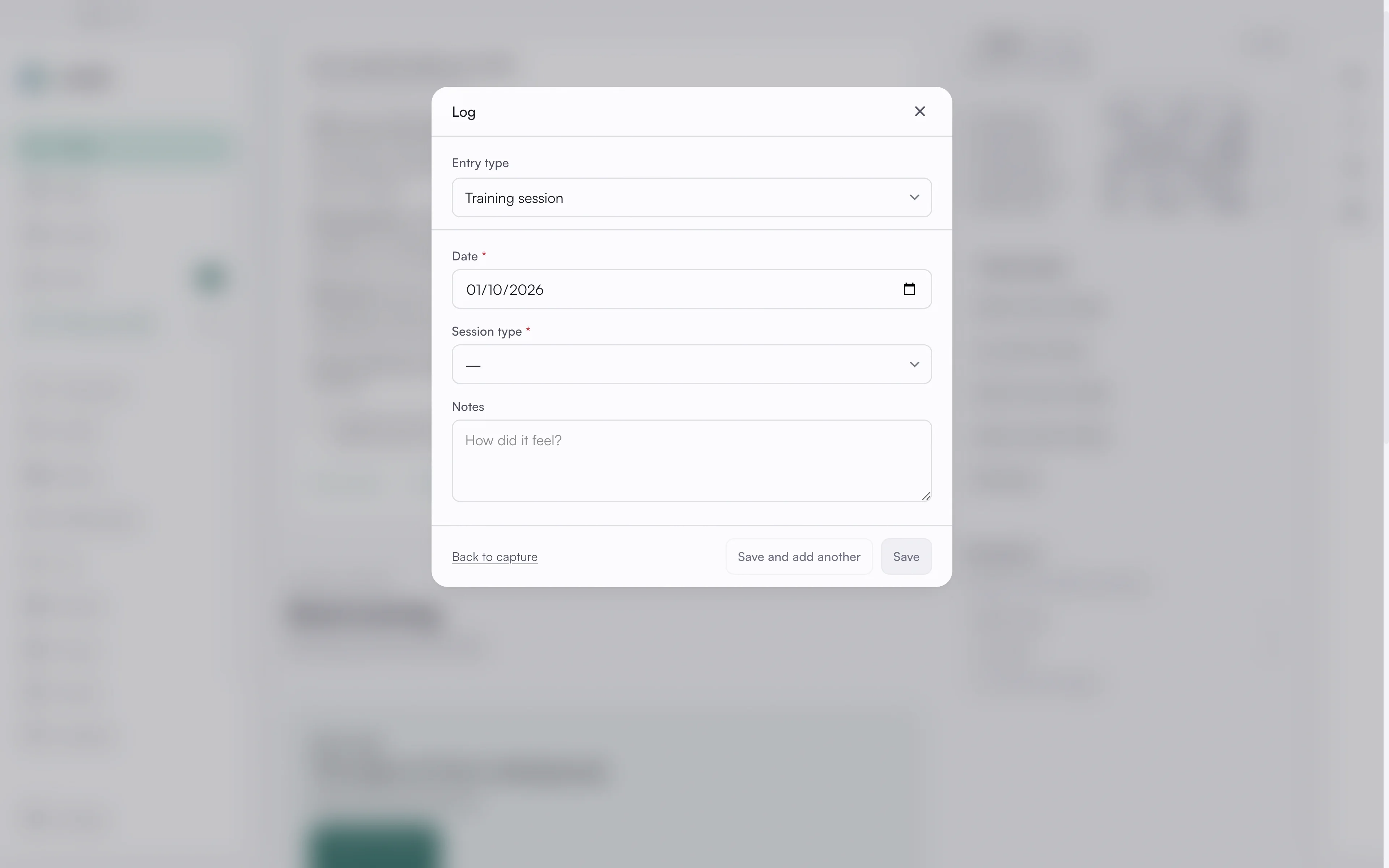
When you have structured data to record (a workout, an expense, a catch-up with a friend), use Log instead in Capture, or the Log menu on an area's page. The fields change with the entry type, so you only see what is relevant. Save and add another keeps the form open so you can log several entries in a row.
Daily check-in and habits
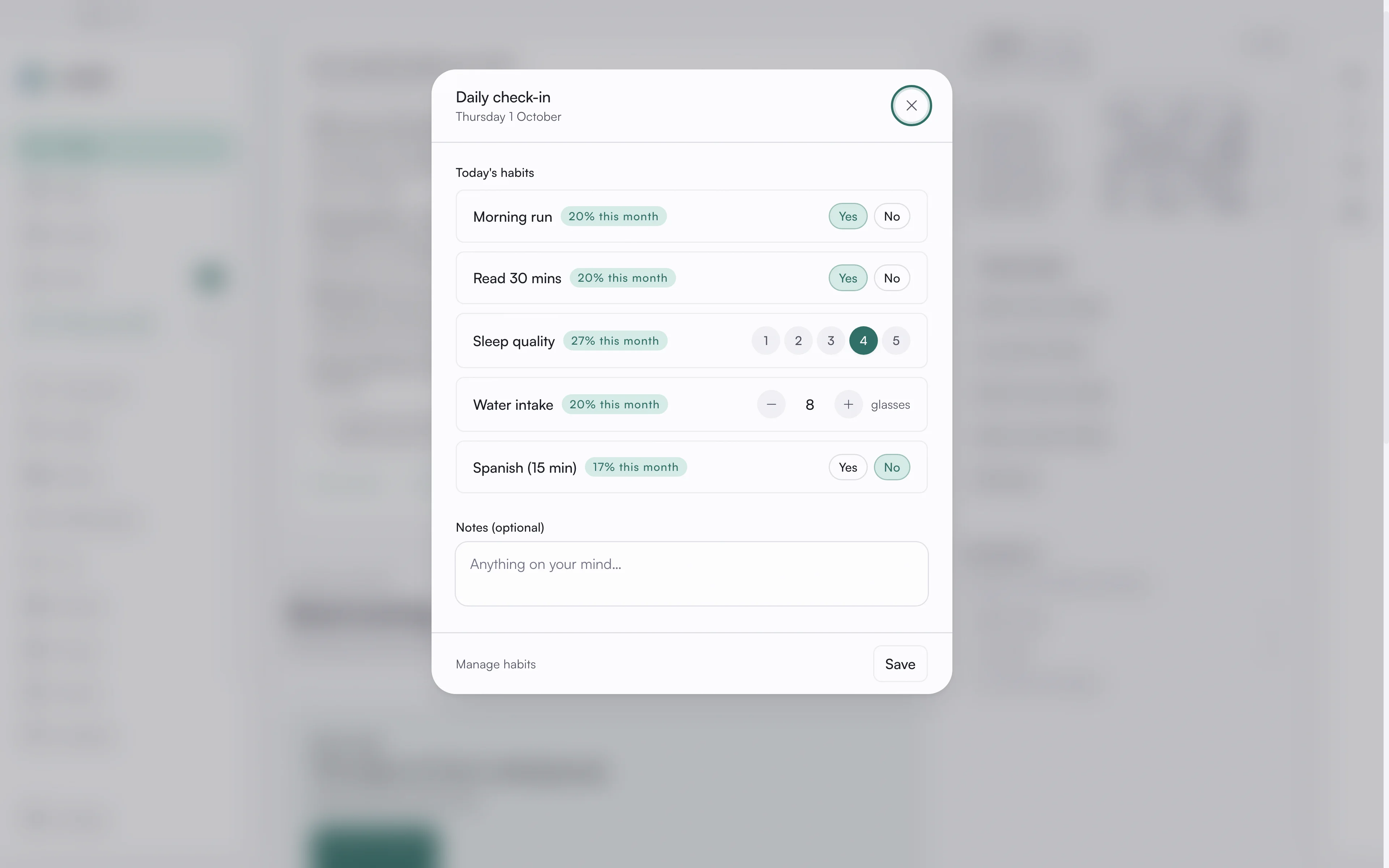
The daily check-in is a one-minute check for your habits. Each habit is recorded as yes or no, a scale, or a count. Open it from the Habits card on Today, which shows the last seven days for each habit, or from the command palette. The check-in shows how often you have kept each one this month.
Add and manage habits from the check-in, or with New habit in any area's Log menu. See Growth.
Your inbox
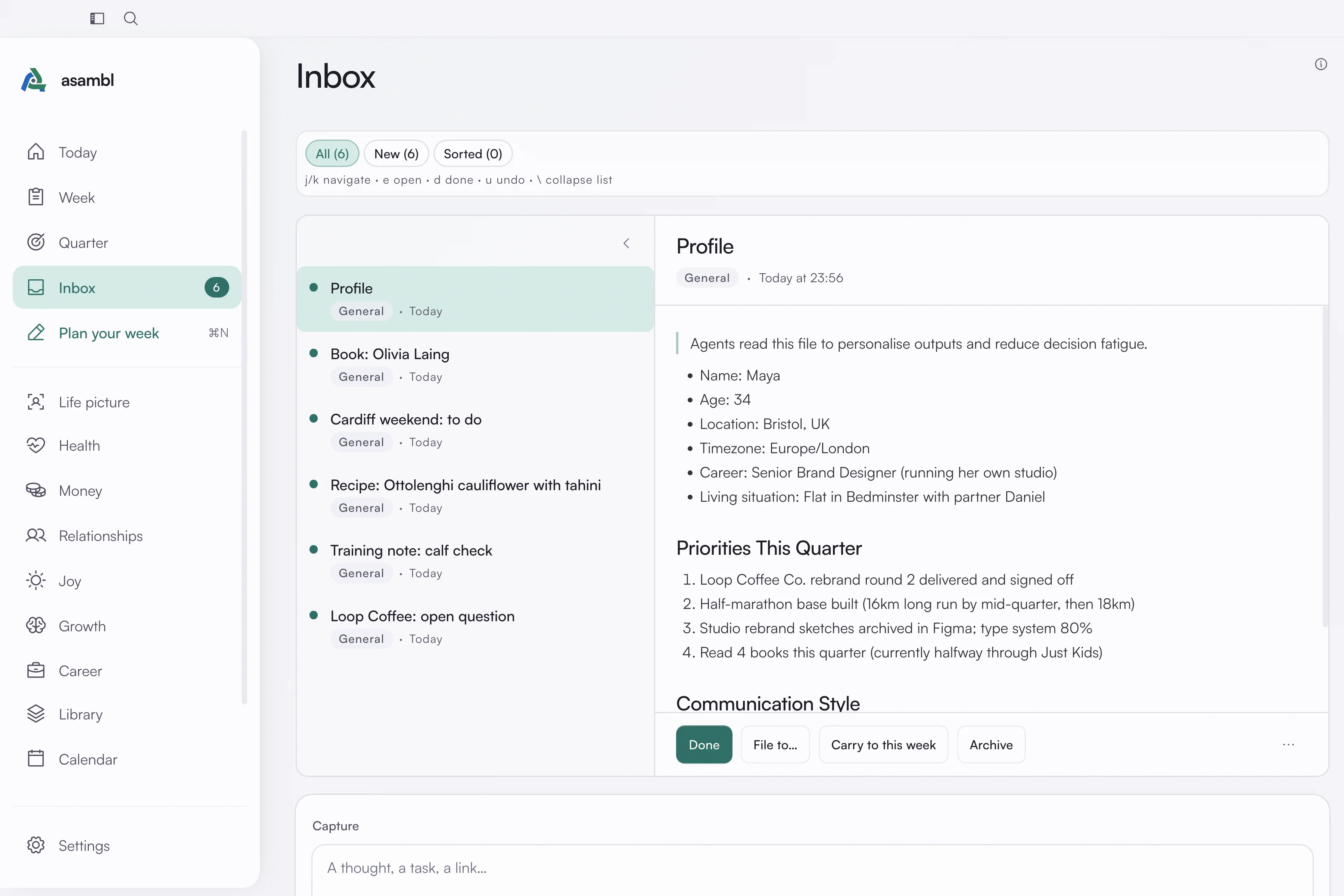
Everything you capture lands in the Inbox until you sort it. Filter the list by All, New or Sorted. Open an item and:
- Done marks it sorted. It is the main action, and
ddoes it from the keyboard. - File to moves it into a life area.
- Carry to this week brings it into the week you are planning.
- Archive moves it to the archive.
- The ⋯ menu holds Mark unread, View in notes, and Delete.
j and k move through the list, e opens an item, and u undoes your last
done, unread or carry, up to twenty steps back. The sidebar badge shows how many
items you have not opened yet.
A to-do you tag here lives in this inbox. It is separate from the Tasks panel in the side panel, which is the standing list you keep yourself; a task you send from the Companion on your phone goes straight onto that list. See Journal, Tasks, Reminders & Admin.
Library
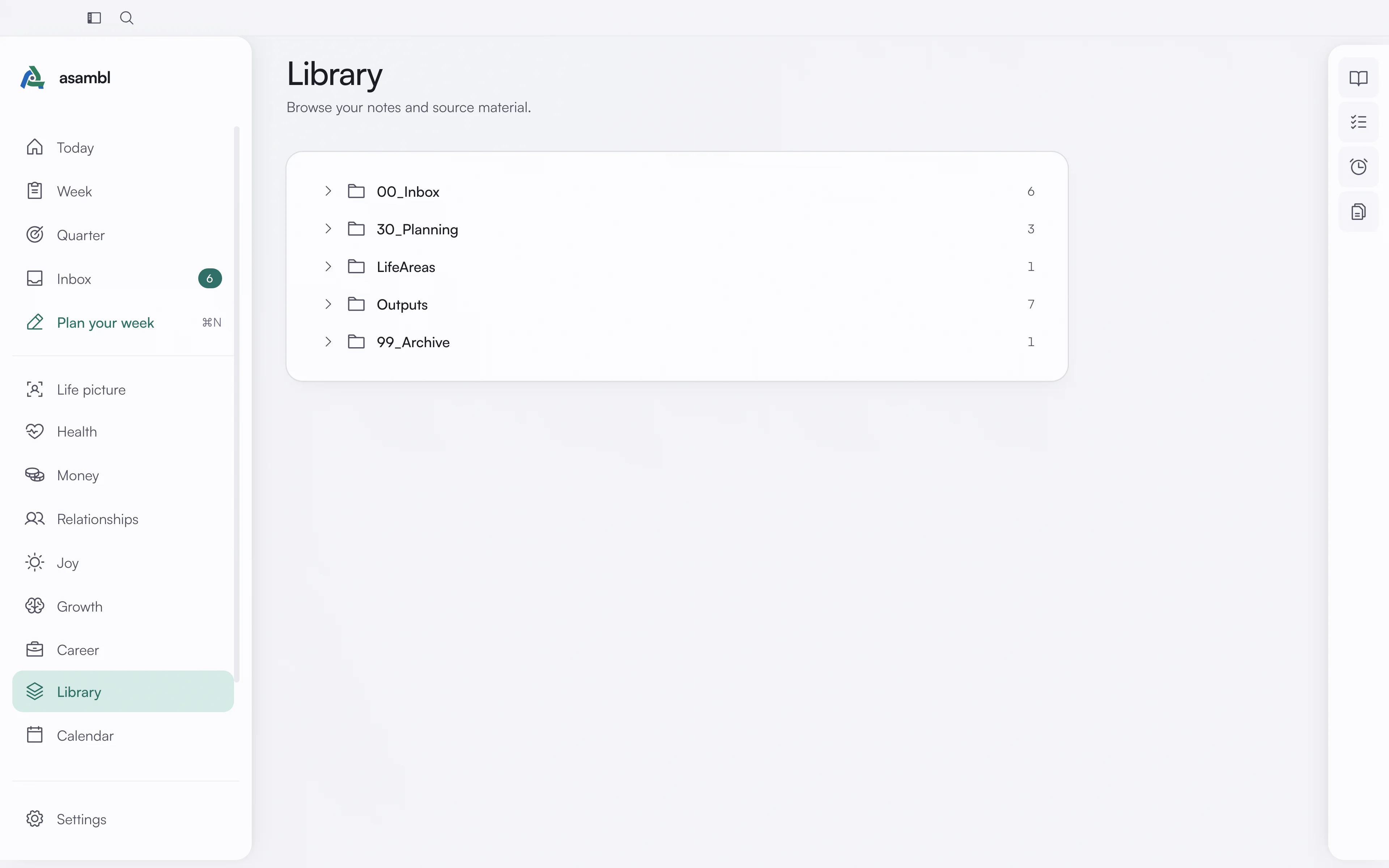
The Library is a built-in browser for your files. Your notes, plans, and entries are stored as plain Markdown in a folder on your computer. Browse by folder and open any file inside asambl. Because it is standard Markdown, you can also open the same folder in Finder or a code editor and work with it however you like.
Version history. asambl keeps the last ten versions of every file. Open a file's history from the Library to see earlier versions and restore one, which makes editing safe: an edit you regret, or a change asambl made that you did not want, is recoverable rather than gone.
Command palette
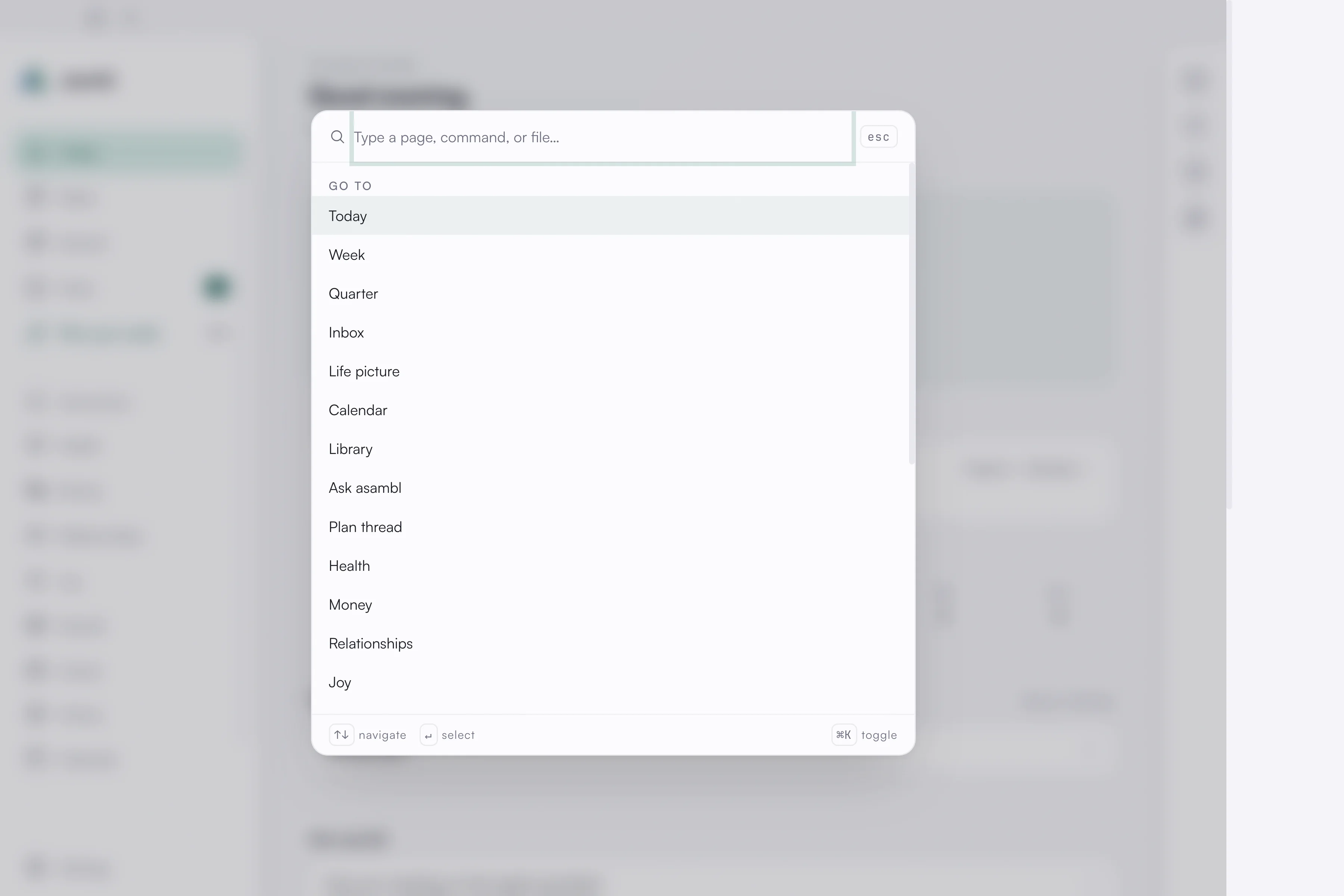
Press Cmd + K (Ctrl + K on Windows) to open the command palette, or click the
search icon in the title bar. It is one bar for three things: jump to any page,
run a command such as Plan your week or Capture, or search across your
files.
Start typing and asambl matches your pages and commands, and runs a full-text search over your notes, plans, and entries. Pick a file result to open it in the Library. Arrow keys move through the list, Enter opens the highlighted result, and Esc closes the palette.
Where it lives and when AI is involved
Everything here stays on your machine. Full-text search, semantic search, and embeddings all run locally on your device. When AI is on, only the prompt for a given request goes to asambl's managed AI endpoint. You can switch AI off, and capture, sorting, and search all keep working. See Settings.
Journal, Tasks, Reminders & Admin
Four quick tools in the desktop side panel, one click away on every screen. A daily journal, a task list with routines, reminders that notify you, and a tracker for renewals.
Ask asambl
A conversational assistant built into the app that answers questions about your week, habits, goals, and life-area data, and can act on your answer once you approve it.